Information as of March 2026 — verify with official sources
Copy Paste Done

Fill in your keys below.
Install scripts are auto-generated.
You paste them.

What You're Building

Free Cloud VM

A 24/7 Linux server on Google's free tier — runs while you sleep, no electricity bill, no exposed home ports.

Nanobot Agent

An ultra-lightweight AI agent (~4K lines) that searches the web, runs commands, manages files, and responds via your favourite messaging app.

Always On, Always Ready

Runs as a background service — message it from anywhere, get instant responses, even when your laptop is off.

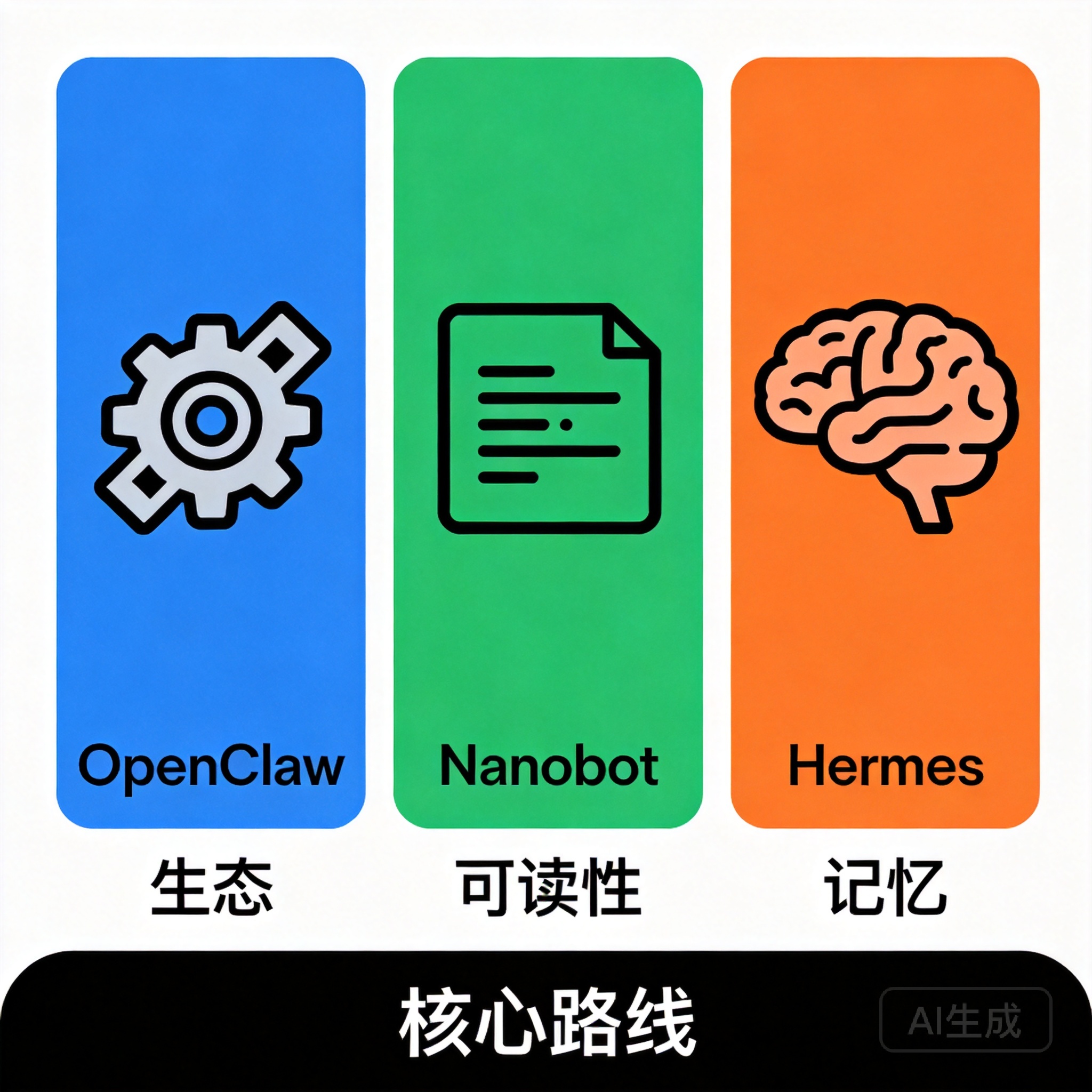
Nanobot vs OpenClaw

Both are open-source autonomous AI agents capable of web search, shell execution, file management, and multi-channel messaging. The key difference is complexity: Nanobot is ~4,000 lines of Python while OpenClaw spans ~430,000 lines of JavaScript/TypeScript. This 100× difference in codebase size translates to a smaller attack surface and easier auditing for security-conscious users. Nanobot supports 11+ LLM providers (Gemini, Claude, GPT, DeepSeek, Groq, Zhipu, and local models via Ollama/vLLM) compared to OpenClaw's model-agnostic approach. For messaging, Nanobot covers 8+ platforms (Telegram, Discord, WhatsApp, Slack, Email, DingTalk, Feishu, QQ) while OpenClaw supports 20+. Choose Nanobot for simplicity and quick deployment; choose OpenClaw for maximum platform coverage and advanced automation workflows.

⚠️ Know the Risks Before You Proceed

Nanobot is an autonomous AI agent — it takes real actions and makes real API calls. Understand these risks first:

Rogue Agent Behaviour

Nanobot can misinterpret instructions and take unintended actions — looping searches, rewriting files, or sending unexpected messages. Always test in a supervised session before leaving it unattended.

Cost Escalation

A runaway tool loop or leaked API key can exhaust your Gemini or Brave Search quotas fast. Set GCP budget alerts (Section 8) before running Nanobot unattended. The maxToolIterations limit in config provides a safety cap.

Hijacking by Attackers

If your Telegram bot token or API keys are leaked — from a public repo, shared screenshot, or log file — an attacker can control your agent and rack up API costs. Treat every key like a bank password.

Data Exposure

Everything you send to the bot is transmitted to Google Gemini (for processing) and Brave Search (for web search). Do not share private data, passwords, or confidential business information with the bot.

This guide is an independent community resource created by Commune.AI. It is provided "as is" without warranty of any kind. Commune.AI, its affiliates, and contributors accept no liability for any damages, costs, or losses arising from the use of this guide, including but not limited to misconfiguration, API charges, data exposure, or service disruptions. By proceeding, you acknowledge that you use this guide entirely at your own risk. Not affiliated with Google LLC, HKUDS/nanobot, Telegram, Brave Software, or any third-party service mentioned herein.

Configure Your Agent

Select your messaging channels, tools, and AI model. The guide adapts — only relevant sections and API key inputs appear. Your config.json is generated automatically.

Messaging Channels
Tools
AI Model Provider
Throughout this guide, ORANGE_VALUES in code blocks are placeholders you must replace. Fill in the input fields in each section — code snippets update automatically.

Three Simple Steps to Your AI Agent

1

Setup Google Cloud Compute Engine

Create a free-tier VM, service account, and swap — ready for Nanobot

PrerequisiteWhere to get itCost
Google accountaccounts.google.comFree
GCP project + billingconsole.cloud.google.comFree

Service Account & VM Creation

Creates a zero-permission service account, a free-tier e2-micro VM, and automatically configures a 2 GB swap file on first boot — all in one step.

☁️
Run this in Google Cloud ShellClick the terminal icon (top-right of the GCP Console) to open Cloud Shell — a browser-based terminal pre-loaded with gcloud.

The script auto-detects your Project ID from Cloud Shell. You can optionally customise the VM and service account names:

Name for the Compute Engine instance.
Name for the restricted service account.
Key Step: Run This Script
Paste the entire script into Cloud Shell and press Enter
☁️ Google Cloud Shell bash
#!/usr/bin/env bash
# ── Auto-detect Project ID from Cloud Shell ────────────────────
PROJECT_ID="$(gcloud config get-value project 2>/dev/null)"
ZONE="us-central1-a"        # keep for Always Free tier
# ─────────────────────────────────────────────────────

set -uo pipefail  # removed -e so script continues on error
VM_NAME="nanobot-vm" ; SA_NAME="nanobot-sa"
FAILED=0

echo "🔌  Enabling APIs (Compute + IAM)…"
if ! gcloud services enable compute.googleapis.com iam.googleapis.com --project="$PROJECT_ID" 2>&1; then
  echo "❌ Failed to enable APIs. Check your project ID and billing status." >&2
  FAILED=1
else
  echo "   ↳ APIs confirmed."
fi

echo "🔐  Creating restricted service account (no IAM roles)…"
gcloud iam service-accounts create "$SA_NAME" \
  --display-name="Nanobot SA — zero GCP permissions" \
  --project="$PROJECT_ID" 2>&1 | grep -q "already exists" && echo "   ↳ Service account already exists (OK)" || echo "   ↳ Service account created."
SA_EMAIL="${SA_NAME}@${PROJECT_ID}.iam.gserviceaccount.com"

if [ $FAILED -eq 0 ]; then
  echo "🖥️   Creating free-tier VM (with swap auto-configured on first boot)…"

  # Write startup script to temp file (configures 2GB swap on first boot)
  cat > /tmp/startup.sh << 'STARTUP_EOF'
#!/bin/bash
if [ ! -f /swapfile ]; then
  fallocate -l 2G /swapfile && chmod 600 /swapfile
  mkswap /swapfile && swapon /swapfile
  echo "/swapfile none swap sw 0 0" >> /etc/fstab
  sysctl -w vm.swappiness=10
  echo "vm.swappiness=10" >> /etc/sysctl.conf
fi
STARTUP_EOF

  if ! gcloud compute instances create "$VM_NAME" \
    --project="$PROJECT_ID" \
    --zone="$ZONE" \
    --machine-type=e2-micro \
    --image-project=debian-cloud \
    --image-family=debian-12 \
    --boot-disk-size=10GB \
    --boot-disk-type=pd-standard \
    --boot-disk-auto-delete \
    --service-account="$SA_EMAIL" \
    --scopes=https://www.googleapis.com/auth/logging.write,https://www.googleapis.com/auth/monitoring.write \
    --metadata=block-project-ssh-keys=true \
    --metadata-from-file=startup-script=/tmp/startup.sh 2>&1; then
    echo "❌ VM creation failed. See error above." >&2
    FAILED=1
  fi

  rm -f /tmp/startup.sh
fi

echo ""
echo "════════════════════════════════════════════"
if [ $FAILED -eq 0 ]; then
  echo "✅  VM ready! 2 GB swap will be live by the time you SSH in."
  echo "════════════════════════════════════════════"
  echo ""
  echo "▶  SSH into your VM:"
  echo "   gcloud compute ssh $VM_NAME --zone=$ZONE --project=$PROJECT_ID"
else
  echo "❌  Setup incomplete — review errors above"
  echo "════════════════════════════════════════════"
  echo ""
  echo "Common fixes:"
  echo "  • Wrong PROJECT_ID → verify in GCP Console"
  echo "  • Billing not enabled → console.cloud.google.com/billing"
  echo "  • VM already exists → delete it first or use a different name"
  echo ""
  echo "Cloud Shell will stay open so you can review the errors."
fi
echo ""
🔒
What this enforcesThe service account has zero IAM roles — Nanobot cannot call any GCP API (Compute, Storage, IAM, etc.). The VM startup script configures 2 GB swap automatically on first boot, before you even connect.

Connect to the VM after creation

Wait ~60 seconds for the VM to boot, then open an SSH session. You can use the Cloud Shell command below, or click the SSH button next to the VM in the GCP Console.

☁️ Google Cloud Shell bash
gcloud compute ssh nanobot-vm --zone=us-central1-a
💡
Verify swap is activeOnce connected to the VM, run free -h — you should see ~2.0G in the Swap row. If it shows 0, the startup script is still running; wait 30 s and check again.

1A. Create the Service Account

The fastest way is a single Cloud Shell command. No roles are granted — this is intentional.

☁️ Google Cloud Shell bash
gcloud iam service-accounts create nanobot-sa \
  --display-name="Nanobot SA — zero GCP permissions"

Or via the Console: IAM & Admin → Service Accounts → + Create Service Account — fill name nanobot-sa, skip the roles step, click Done. Do not create or download a JSON key.

1B. Create the VM

  1. Go to Compute Engine → VM instances → + Create Instance.
  2. Region: us-central1   Zone: us-central1-a
    ⚠️
    Region lockThe Always Free e2-micro only applies to us-central1 or us-west1. Any other region incurs compute charges.
  3. Machine type: Series E2 → e2-micro (2 vCPU, 1 GB memory).
  4. Boot disk → Change: Debian 12 · pd-standard · 10 GB. (Do not select pd-ssd — not free.)
  5. Identity and API access: select service account nanobot-sa.
  6. Firewall: leave both HTTP and HTTPS unchecked.
    🔒
    Nanobot dials outbound HTTPS to Telegram, Brave Search, and Gemini. GCP allows all outbound TCP by default — no rules needed. These checkboxes only open inbound ports, which we do not want.
  7. Confirm cost shows $0.00/month, click Create.

1C. Add Swap Memory (VM SSH)

SSH in via the GCP Console → VM instances → SSH button next to nanobot-vm. Then run:

🖥️ VM SSH Terminal bash
sudo bash -c '
  fallocate -l 2G /swapfile && chmod 600 /swapfile
  mkswap /swapfile -q && swapon /swapfile
  echo "/swapfile none swap sw 0 0" >> /etc/fstab
  sysctl -w vm.swappiness=10 > /dev/null
  echo "vm.swappiness=10" >> /etc/sysctl.conf
  echo "✅  2 GB swap active"; free -h
'
💡
Why swap on a 1 GB VM?The e2-micro has only 1 GB RAM. Nanobot + Python venv + system processes can exhaust physical memory, causing the OS to kill Nanobot mid-task. Swap provides a 2 GB overflow buffer.

With GCP done, proceed to Step 2 to obtain your API keys.


2

Obtain API Keys

Set up the channels and model provider you selected above

Telegram Bot Setup

💻
Run this section on your phone or desktopOpen Telegram on any device — no access to the VM or Cloud Shell is needed here.

2.1 Create a bot with BotFather

  1. Open Telegram → search @BotFather → send /newbot.
  2. Enter a display name, e.g. My Nanobot.
  3. Enter a username ending in bot, e.g. mynanobot_xyz_bot.
  4. BotFather sends your Bot Token: a long string like 7012345678:AAFxxxxxxxxxxxxxxx. Copy it.
⚠️
Your bot token is a master keyAnyone who has it can send commands through your bot. Never commit it to Git, share it publicly, or paste it into a shared document.
🔑 Paste your Telegram Bot Token — updates all code snippets
From @BotFather — looks like: 7012345678:AAFxxxxx...
○ Not yet entered

2.2 Get your personal Telegram User ID

  1. Search Telegram for @userinfobot → send any message.
  2. The bot replies with Id: 123456789 — that number is your User ID.
🔒
Why a numeric ID?Nanobot checks every incoming message's sender ID. Any sender not in allowFrom is silently ignored — strangers cannot command your bot. Numeric IDs are permanent; usernames can change.
🪪 Enter your Telegram User ID — updates all code snippets
A number, not a username. From @userinfobot in Telegram.
○ Not yet entered

Gemini API Key Free Tier

💻
Run this section in your browserVisit aistudio.google.com from any browser — no VM or Cloud Shell access required.
  1. Open aistudio.google.com → sign in with your Google account.
  2. Click Get API key (left panel) → Create API key.
  3. Select Create API key in new project (or an existing project).
  4. Copy the key — it begins with AIzaSy...
Free tier limitAllowance
Requests/day (Gemini 2.0 Flash)1,500
Tokens/minute1,000,000
GCP billing impactNone — tracked separately via AI Studio
🔑 Paste your Gemini API Key — updates all code snippets
From Google AI Studio — starts with AIzaSy...
○ Not yet entered

Brave Search API Key ~US$1 one-time

💻
Run this section in your browserVisit api.search.brave.com — no VM or Cloud Shell needed.

Brave Search is the web search backend hardcoded in Nanobot. It gives your agent real-time access to current information. The Search plan includes US$5 of free API calls per month (~1,000 queries). Subscribing may incur a small one-time charge of approximately US$1 that's usually reversed; you can set a usage limit to stay within the free US$5 monthly credits.

  1. Go to api.search.brave.comSign Up or log in.
  2. Subscribe to the Search plan. A credit card is required — a small one-time authorization charge of ~US$1 may appear (refunded or credited).
  3. Once subscribed, go to API Keys+ Add API Key → name it nanobot.
  4. Copy the key — it starts with BSA.
  5. Set a usage limit (recommended): In your Brave account → Subscriptions → set a monthly cap at or below US$5 to avoid unexpected charges.
Plan detailValue
Plan nameSearch
Free credits/monthUS$5 (~1,000 queries)
One-time signup charge~US$1 (authorization hold)
Credit card requiredYes
🔑 Paste your Brave Search API Key — updates all code snippets
From api.search.brave.com → API Keys — starts with BSA...
○ Not yet entered

3

Install Nanobot in Compute Engine

Deploy, configure, run, and verify your AI agent on the VM

🖥️
Everything in this section runs inside the VM SSH terminalOpen it via: GCP Console → Compute Engine → VM instances → SSH button next to nanobot-vm.
Username auto-detected! The install script below automatically runs whoami to detect your Linux username — no manual entry needed.
🤖 Advanced: Custom Model ID (Click to expand)
⚠️
Advanced setting — only change if you know the exact model name! Incorrect model names will cause Nanobot to fail at startup. The default model below is recommended for most users.
🤖 Custom Model ID
💡 Format requires provider prefix: provider/model-name. You must use the exact model name or Nanobot will not run. Examples: gemini/gemini-3.1-flash-lite-preview, anthropic/claude-sonnet-4-20250514, openrouter/auto, groq/llama-3.3-70b-versatile
○ Using default model
Key Step: Auto-Install Nanobot
Your values and selected channels/model are pre-filled. Verify, then paste the entire script into the VM terminal
🖥️ VM SSH Terminalbash — auto-install
Loading…
  1. Update system and install Python:
    🖥️ VM SSH Terminal
    sudo apt-get update && sudo apt-get upgrade -y
    sudo apt-get install -y python3-venv python3-pip
  2. Create virtual environment:
    🖥️ VM SSH Terminal
    mkdir -p ~/.nanobot/workspace
    python3 -m venv ~/.nanobot/venv
  3. Install nanobot-ai:
    🖥️ VM SSH Terminal
    ~/.nanobot/venv/bin/pip install --upgrade pip
    ~/.nanobot/venv/bin/pip install nanobot-ai
  4. Verify:
    🖥️ VM SSH Terminal
    ~/.nanobot/venv/bin/nanobot --version
  5. Create config file:
    🖥️ VM SSH Terminal
    nano ~/.nanobot/config.json
    Paste the config below (dynamically generated from your selections and values):
    🖥️ VM SSH Terminaljson — ~/.nanobot/config.json
    Loading…
    Save: Ctrl+XYEnter
  6. Lock down permissions:
    🖥️ VM SSH Terminal
    chmod 600 ~/.nanobot/config.json

Config settings explained

KeyPurpose & security note
channels.telegram.allowFromSecurity control. Only this specific Telegram User ID (stored as a quoted string) can send commands. Add more entries if sharing access.
tools.web.search.apiKeyBrave Search API key — hardcoded search backend in Nanobot. The Search plan gives US$5/month in free credits.
tools.exec.timeoutLimits shell command execution to 60 seconds. Prevents runaway processes.
tools.restrictToWorkspaceWhen true, limits file access to the workspace directory only. Set to false if Nanobot needs broader file access.
maxToolIterations: 40Caps tool calls per response — prevents runaway loops from exhausting API quotas.

Run Nanobot

🖥️
Run these commands in the VM SSH terminalGCP Console → Compute Engine → VM instances → SSH.

Running as a system service (auto-start on boot, auto-restart on crash) is in Appendix A. For most learners, start here:

🚀
Key Step: Start Your AI Agent
Choose a method below to run Nanobot

Method 1 — Foreground (recommended for first run)

Watch all output in real time. Press Ctrl+C to stop.

🖥️ VM SSH Terminalbash
~/.nanobot/venv/bin/nanobot gateway

Method 2 — Background with nohup (survives SSH disconnect)

🖥️ VM SSH Terminalbash
nohup ~/.nanobot/venv/bin/nanobot gateway \
  > ~/.nanobot/nanobot.log 2>&1 &
echo "Started. PID: $!"
TaskCommand
Check runningpgrep -a nanobot
Watch live logstail -f ~/.nanobot/nanobot.log
Stop itpkill -f "nanobot gateway"

Verify the Installation

💻
Run this test from your messaging appNo VM access needed — open the messaging app you configured and test your bot.
  1. Open Telegram → find your bot by @username → send /start. Nanobot should reply.
  2. Send: What is the latest Python version? — Nanobot should search the web and reply with a current, accurate answer.
  3. Security test: If you have a second Telegram account, message the bot from it. Nanobot should produce no reply.
🔒
No reply from the second account = security filter is working.If it does reply, recheck the allowFrom value in config.json — ensure it is a number, not a quoted string.

Cost Monitoring & Alerts

💻
Run this section in your browserGCP Console — no VM access needed.

8.1 Create a GCP budget alert

  1. GCP Console → hamburger menu → Billing → select your billing account.
  2. Left sidebar → Budgets & alerts → + Create Budget.
  3. Name: Nanobot Budget · Projects: your project · Type: Monthly · Amount: $5 (safety net — normal spend is $0).
  4. Add thresholds:
    %At $5 budget triggers atSuggested action
    50%$2.50Investigate — something may be running outside the free tier.
    90%$4.50Stop non-essential resources immediately.
    100%$5.00Review all active GCP resources now.
  5. Confirm your email in Manage notificationsFinish.

8.2 Free tier at a glance

ResourceFree allowance/monthThis guide's usage
e2-micro VM (us-central1)1 instance1 ✅
pd-standard disk30 GB10 GB ✅
Network egress (Americas/EMEA)1 GBLow ✅
Gemini 2.0 Flash (AI Studio)1,500 req/dayLow ✅
Brave Search (Search plan)US$5 free credits/moLow ✅
Ephemeral external IP (running VM)FreeFree ✅

A

Appendix A: System Service Optional

↑ Setup Map
🖥️
All commands in this appendix run in the VM SSH terminal.
Featurenohup (Section 6)systemd (this appendix)
Survives SSH disconnect
Auto-restarts on crash
Starts on VM reboot
OS-level filesystem sandbox

A.1 Stop any running background process

🖥️ VM SSH Terminal
pkill -f "nanobot gateway" 2>/dev/null || true

A.2 Create the unit file

🖥️ VM SSH Terminal
sudo nano /etc/systemd/system/nanobot.service

Paste — replace the four occurrences of YOUR_LINUX_USERNAME:

🖥️ VM SSH Terminalsystemd unit
[Unit]
Description=Nanobot AI Agent
After=network-online.target
Wants=network-online.target

[Service]
User=YOUR_LINUX_USERNAME
WorkingDirectory=/home/YOUR_LINUX_USERNAME
Environment=HOME=/home/YOUR_LINUX_USERNAME
ExecStart=/home/YOUR_LINUX_USERNAME/.nanobot/venv/bin/nanobot gateway
Restart=always
RestartSec=10
NoNewPrivileges=true
ProtectSystem=strict
ProtectHome=read-only
ReadWritePaths=/home/YOUR_LINUX_USERNAME/.nanobot
PrivateTmp=true

[Install]
WantedBy=multi-user.target

A.3 Enable and start

🖥️ VM SSH Terminal
sudo systemctl daemon-reload
sudo systemctl enable nanobot
sudo systemctl start nanobot
sudo systemctl status nanobot --no-pager

A.4 Common commands

CommandWhen to use
sudo systemctl restart nanobotAfter editing config.json.
sudo systemctl stop nanobotTo pause Nanobot.
sudo systemctl disable nanobotPrevent auto-start on boot.
sudo systemctl daemon-reloadRequired after editing the .service file.

B

Appendix B: Troubleshooting

↑ Setup Map
🖥️
All diagnostic commands run in the VM SSH terminal.

B.1 View logs

nohup mode

🖥️ VM SSH Terminal
tail -f ~/.nanobot/nanobot.log

systemd mode — follow live

🖥️ VM SSH Terminal
sudo journalctl -u nanobot -f

Last 100 lines

🖥️ VM SSH Terminal
sudo journalctl -u nanobot -n 100 --no-pager
💡
What to look forSearch output for ERROR or Traceback. Common culprits: wrong API key, invalid bot token, JSON syntax error in config.

B.2 Validate config syntax

🖥️ VM SSH Terminal
python3 -m json.tool ~/.nanobot/config.json

Valid = formatted JSON prints. Error = line number where parsing failed.

B.3 Common fixes

Telegram 401 Unauthorized — Bot token wrong or regenerated.

@BotFather → /mybots → select bot → API Token → update config.json → restart Nanobot.

Google API 403 / not valid — Gemini key wrong.

Visit aistudio.google.com, verify or regenerate the key, update config.json, restart.

Nanobot runs but no Telegram reply
  1. Confirm allowFrom contains your Telegram User ID as a quoted string: ["123456789"].
  2. Confirm you are messaging from the account whose ID is in the config.
  3. Watch logs while sending — no log entry = Telegram isn't delivering (check bot token).
Brave Search 401 / web search errors
  1. Log in to api.search.brave.com — verify key is active and monthly credits not exceeded.
  2. Confirm "apiKey" in the tools.web.search block matches your Brave key (starts with BSA).

C

Appendix C: Search Backend Notes

↑ Setup Map

Nanobot's web search tool is hardcoded to use the Brave Search API. Alternative search providers (e.g. Tavily) are not supported at this time.

Managing Brave Search costs

  1. Log in to api.search.brave.com → go to your Subscriptions page.
  2. Set a monthly usage cap at or below US$5 to stay within the free credit allocation.
  3. Monitor usage under Dashboard → Usage. Each query costs ~US$0.005.
  4. If you exceed the free credits, Brave will charge your card on file. The usage cap prevents this.
💡
TipThe maxToolIterations: 40 setting in config.json also indirectly limits search calls per conversation — a runaway agent cannot issue unlimited queries.

D

Appendix D: WhatsApp Bridge as systemd Service

↑ Setup Map
🖥️
All commands in this appendix run in the VM SSH terminal.

The WhatsApp bridge requires a persistent process to maintain the connection. This appendix shows how to run it as a systemd service that survives terminal close and system restarts.

Prerequisites

Create WhatsApp Bridge Service

Create a systemd service file for the WhatsApp bridge:

🖥️ VM SSH Terminal bash
sudo tee /etc/systemd/system/nanobot-whatsapp-bridge.service > /dev/null << 'EOF'
[Unit]
Description=Nanobot WhatsApp Bridge
After=network-online.target
Wants=network-online.target

[Service]
Type=simple
User=YOUR_LINUX_USERNAME
WorkingDirectory=/home/YOUR_LINUX_USERNAME
ExecStart=/home/YOUR_LINUX_USERNAME/.nanobot/venv/bin/nanobot channels login
Restart=always
RestartSec=10
StandardOutput=journal
StandardError=journal

[Install]
WantedBy=multi-user.target
EOF

Enable and Start the Bridge Service

🖥️ VM SSH Terminal bash
sudo systemctl daemon-reload
sudo systemctl enable nanobot-whatsapp-bridge.service
sudo systemctl start nanobot-whatsapp-bridge.service

Verify Bridge Status

🖥️ VM SSH Terminal bash
sudo systemctl status nanobot-whatsapp-bridge.service

You should see Active: active (running). To view logs:

🖥️ VM SSH Terminal bash
sudo journalctl -u nanobot-whatsapp-bridge.service -f

Update Nanobot Gateway Service

If you're using the systemd service from Appendix A, ensure the gateway service starts after the bridge:

🖥️ VM SSH Terminal bash
sudo sed -i '/^After=/s/$/\nAfter=nanobot-whatsapp-bridge.service/' /etc/systemd/system/nanobot.service
sudo systemctl daemon-reload
sudo systemctl restart nanobot.service
💡
Service ManagementStop: sudo systemctl stop nanobot-whatsapp-bridge · Restart: sudo systemctl restart nanobot-whatsapp-bridge · Disable auto-start: sudo systemctl disable nanobot-whatsapp-bridge
⚠️
Session PersistenceThe bridge session is stored in ~/.nanobot/bridge/. If you delete this directory, you'll need to re-scan the QR code. Back it up before major system changes.
Setup Actions 0/6